Custom 3D models can be loaded into your project and utilized for previsualisation. These models be used as either display surfaces or as props. The supported format for a 3D model is .obj.
Custom 3D objects can either have a baked in UV unwrap, or not. Objects with a UV unwrap can be used as screen objects to display content, while non-unwrapped ones can only be used as Prop objects used for the visualiser.
Outlined in these tabs are the needed export settings for a custom OBJ to be used in disguise.
Please note: Other types of 3D objects known as Alembic files can also be imported into Disguise software; these types of objects included animation that can be triggered from within Disguise software. For more information on these types of files, please visit this link: Alembic files.
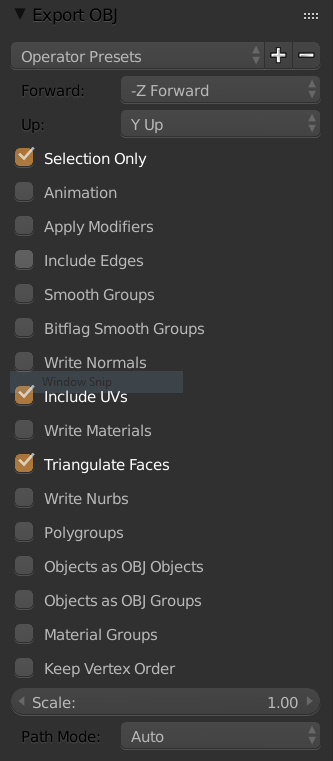
Blender Export Settings
-
Select the object to be exported from the 3D application. Note that the selection can not contain any scene elements such as lights or cameras.
-
Select the 3D application's export utility.
-
Select the .obj format from the list of available formats.
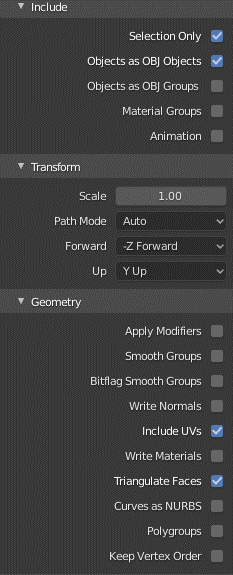
Export settings for Blender
Maya Export Settings
-
Select the object to be exported from the 3D application. Note that the selection can not contain any scene elements such as lights or cameras.
-
Select the 3D application's export utility.
-
Select the .obj format from the list of available formats.
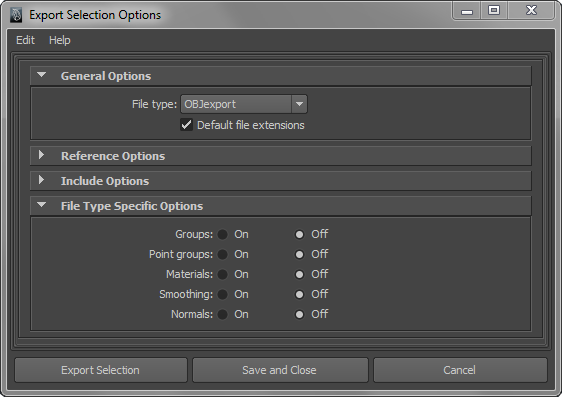
Export settings for Maya
3ds Export Settings
-
Select the object to be exported from the 3D application. Note that the selection can not contain any scene elements such as lights or cameras.
-
Select the 3D application's export utility.
-
Select the .obj format from the list of available formats.
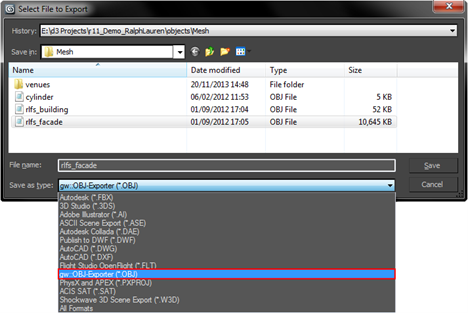
-
Deselect shapes, lines, hidden objects, normals, smoothing groups, material, and material libraries. Disguise does not support these.
-
If the object is to become a screen or a textured prop, select texture coordinates, which will export the object's UV map.
-
Select flip yz-axis to ensure the object is orientated correctly in Disguise software.
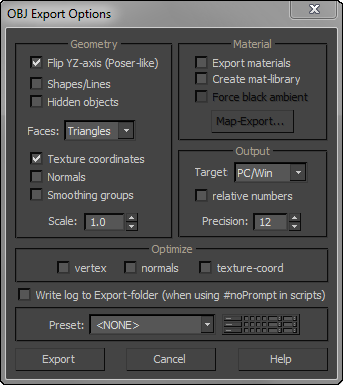
Export settings for 3ds Max
Save the .obj file in the Disguise Project folder in the following directory: Projects > Project Name > objects > Mesh.
To read more about where to place media, see the Placing media files for a project page.
A list of .obj files exported from 3ds Max to a Disguise Project folder.
Please note: We recommend triangulating faces before exporting models for use in Disguise software.
C4D Export Settings
-
Check the project settings are set to scale in meters (C4D defaults to cm).
-
Select the object to be exported from the 3D application. Note that the selection can not contain any scene elements such as lights or cameras.
-
Select the 3D application's export utility.
-
Select the .obj format from the list of available formats.
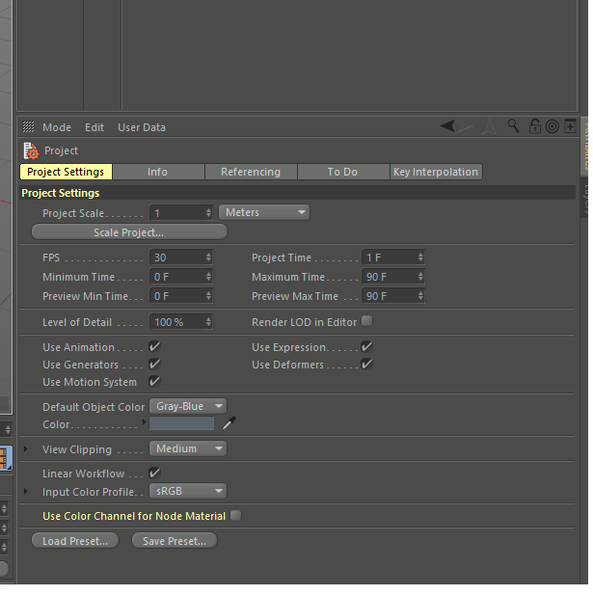
Export settings for C4D
