Mapping Matter Share
Share
WARNING
To share your any Scene / individual Asset, you'll first need to be on the same organisation as the people you wish to share it with.
Ensure both you and your teammates are all in the same organisation together. If you need to make any changes to member management and add new teammates to your organisation please follow the steps on this page.
Please note that your teammates may need to re-login to Mapping Matter after being added to a new organisation.
Share a Scene
When you share a Scene file, it will also copy all of its assets (Projectors, Textures, 3D Objects, etc...).
WARNING
You'll need to be the creator of the Scene. If it was shared with you, only a duplicate version of it can be shared.
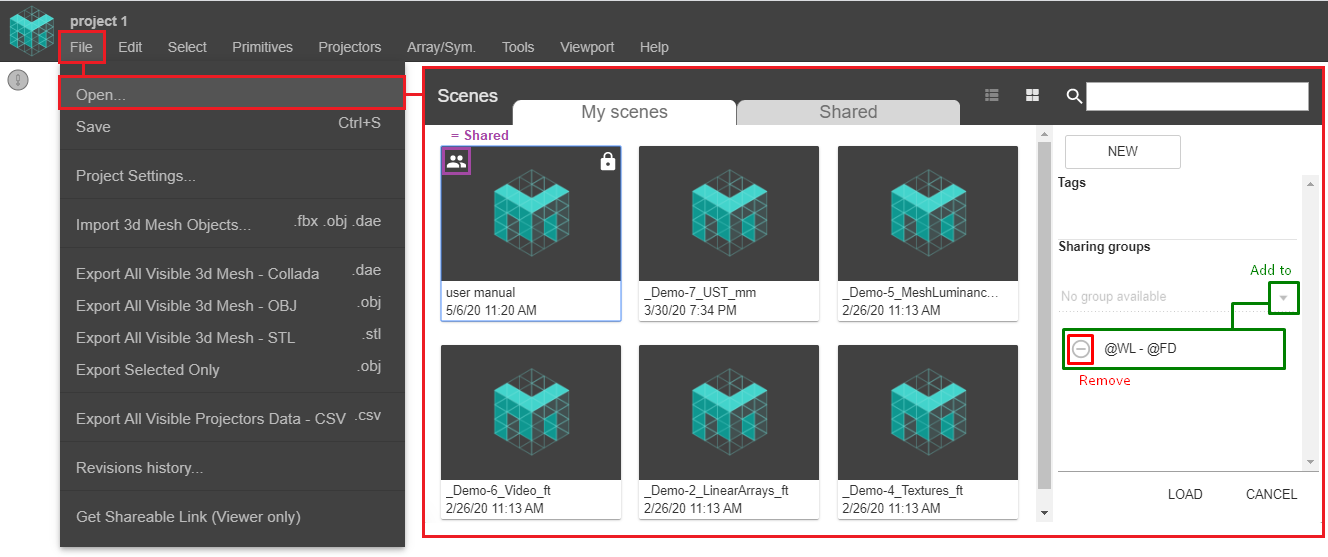
This option won't be accessible from the Home Page. You can do it through the Scene Library.
Access the Scene Library : TOP MENU > File > Open...
Share an Asset
Share a Projector
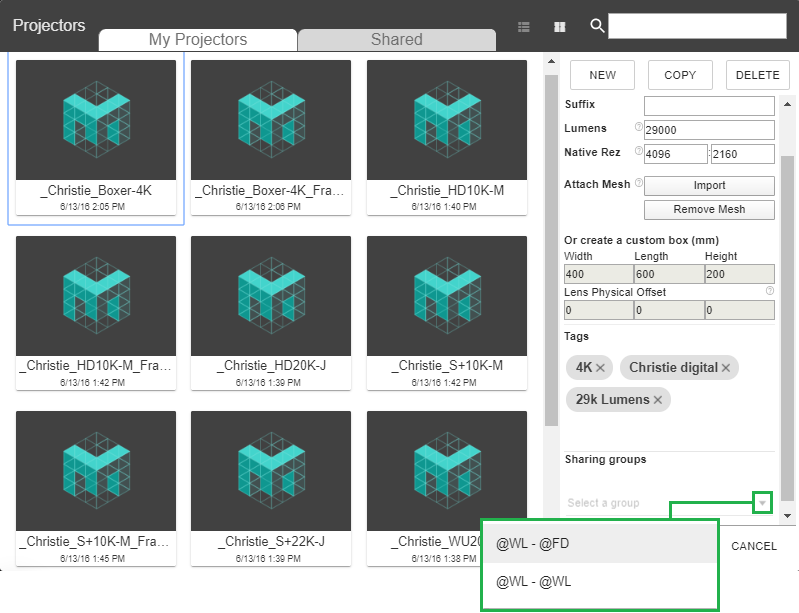
TOP MENU > Projectors > Projector
Select a Projector > Add it to any Group Sharing Folder
Share a Texture
You'll have access to the Texture Library through different paths.
Select a Projector > Properties > Projector Image
Select a Primitive > Properties > Base Map (or Projection Map).
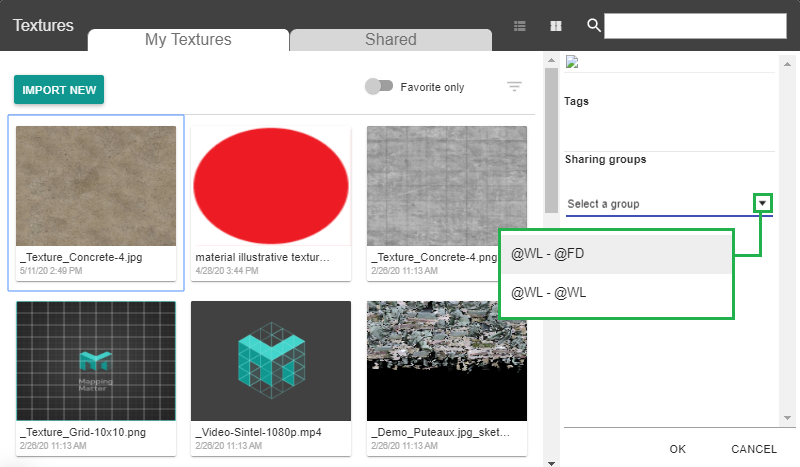
Select a Texture, and add it to any Group Sharing Folder.
Share a 3D mesh
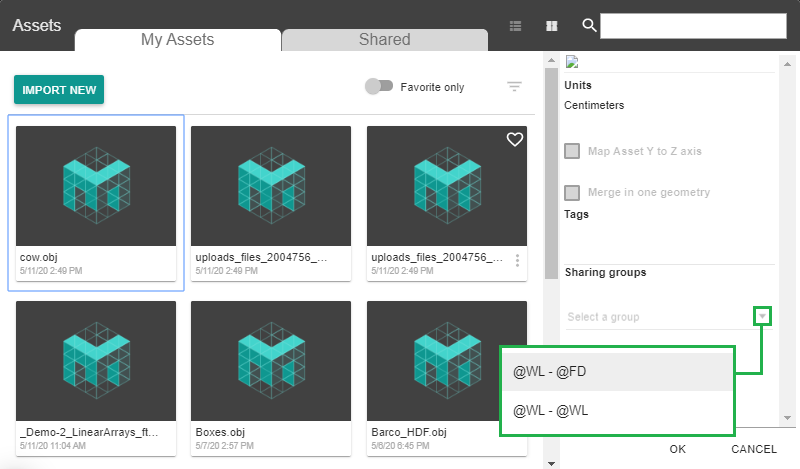
TOP MENU > File > Import 3D Mesh Objects
Select an Asset, and add it to any Group Sharing Folder.
Share a Viewer Only link
For anyone with the Link and Password to view your Scene and possibly previewing their own Content there.
How to generate a Viewer Only link
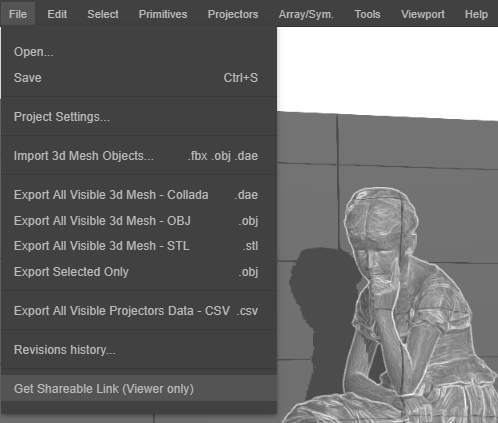
TOP MENU > File > Get Shareable Link
Tick the Enabled Box, and type-in a password.
How to operate on the Viewer's Landing Page
All people with the Link can preview their own Content on Reversed-Mapped Objects.
Imported Content will only apply on Objects which already had Content (Image / Video) as Projection Map.
The Projection Map has to be revealed in your Scene, either by a Projector in Reverse Mapping mode, or with the Projection Texture Tool.
.png "Share a viewer only linke (inside)")
