Unreal Engine Workflow
Ensure that you have Unreal Engine 5.0.3 installed.
To learn this basic workflow, the project does not need to have any sample content. However, the team has provided a sample project that demonstrates how 3D Text is configured for Porta* which you can use.
If you are planning to use the project for production purposes, you may wish to build an environment with content on at least one level.
Enable the following plugins:
-
Porta Manager plugin*
* To download the latest Porta plugin select Help > Plugins from the menu and select PortaPlugins_2_0_1.zip.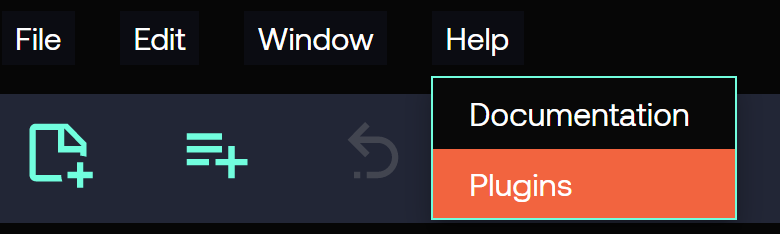
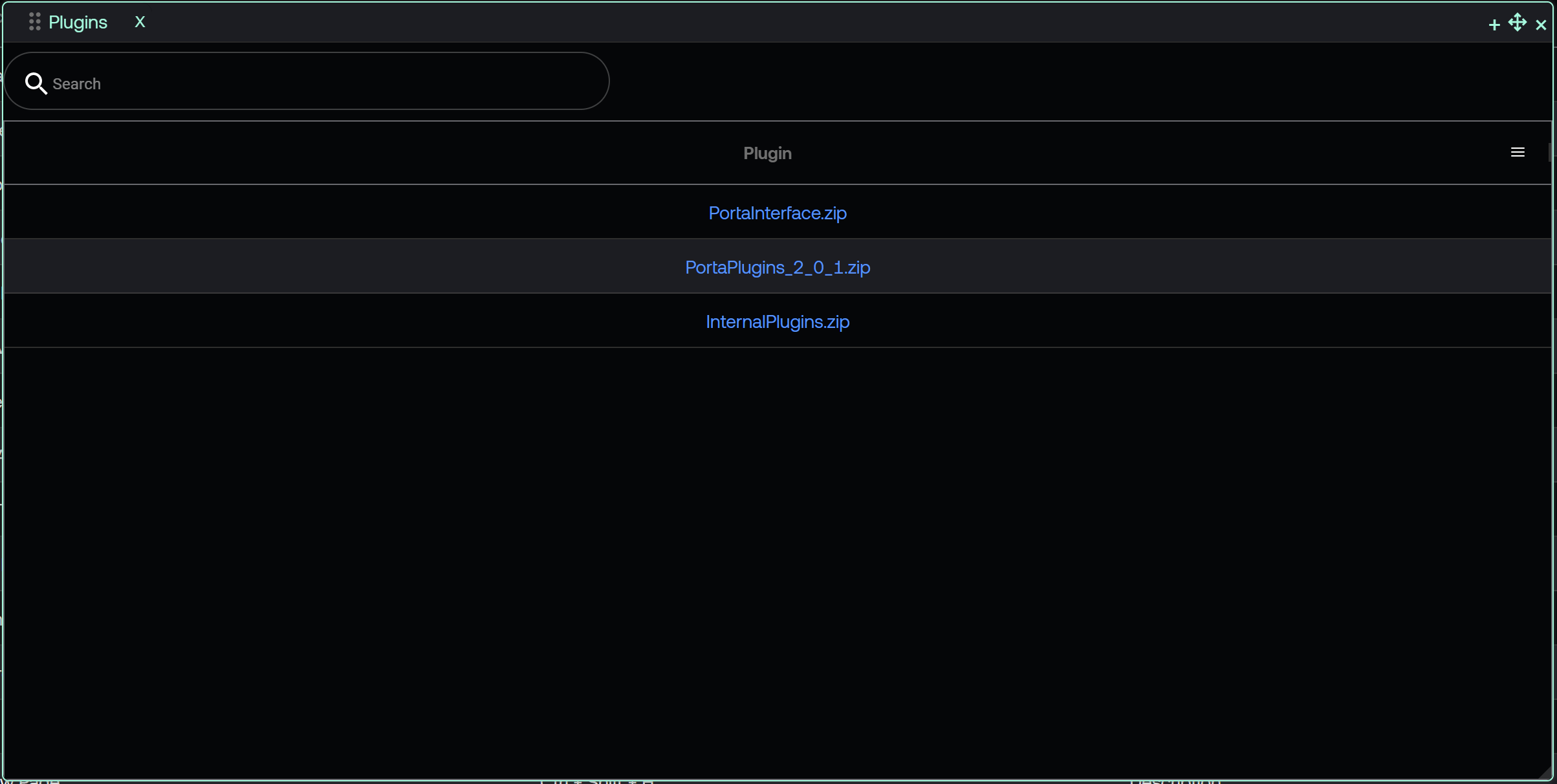
If you have a sample Porta project some of these plugins may already be enabled.
If you are not using a sample project, create a new empty project.
Create a new project
In Epic Games Launcher, launch the Unreal Engine 5.0.3.
-
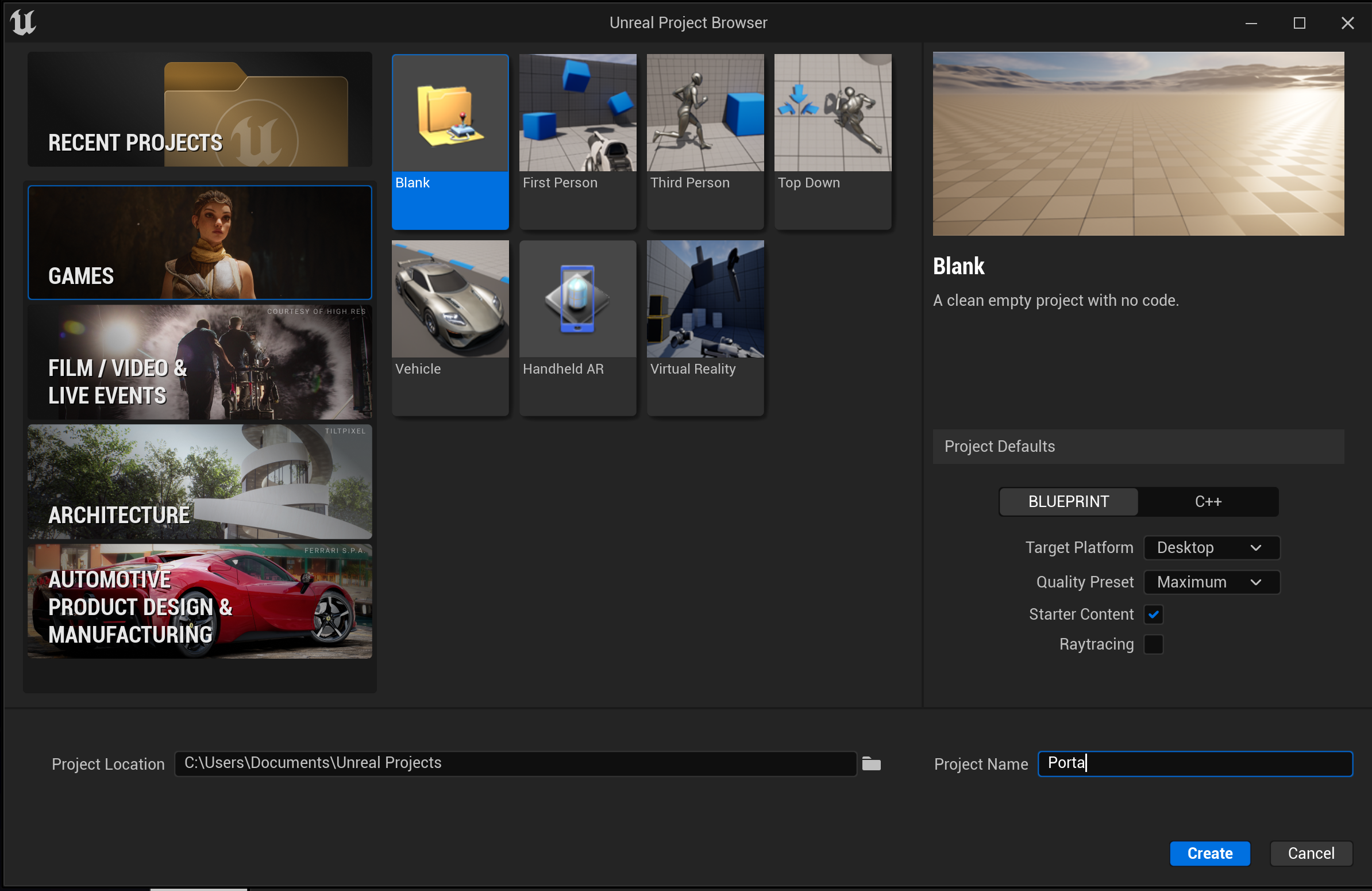
Create a project by selecing the Games category.
-
Select a Blank template.
-
In Project Defaults, select Blueprint project with the default settings.
-
Name the project "Porta".
-
Click Create
-
The Epic Games Launcher creates a new project and opens the Unreal Editor.
Enable the 3D Text plugin
-
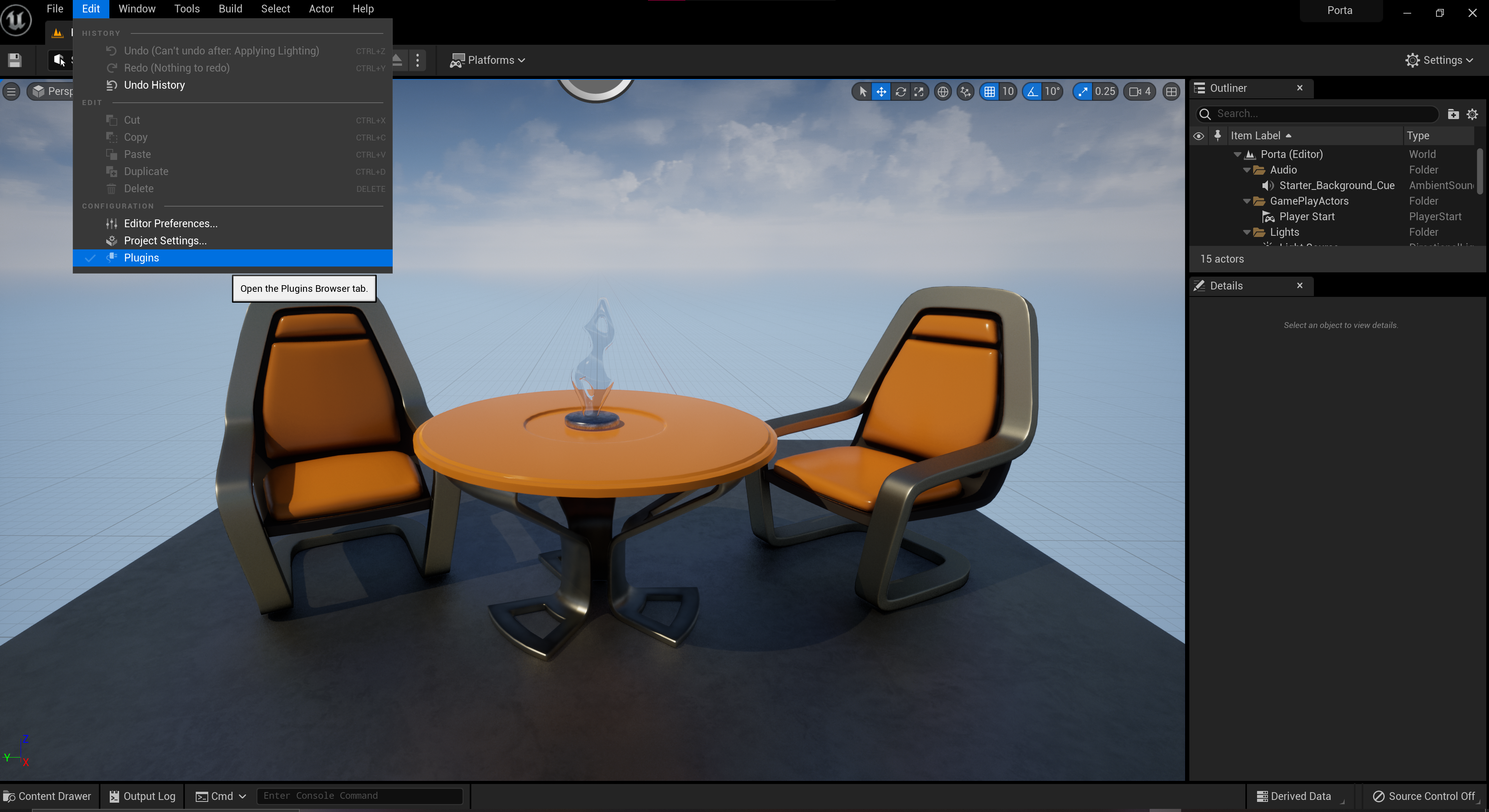
Select Edit > Plugins.
-
Type 3D in the search bar.
-
Click on the checkbox to enable it.
-
Click on the Restart Now button.
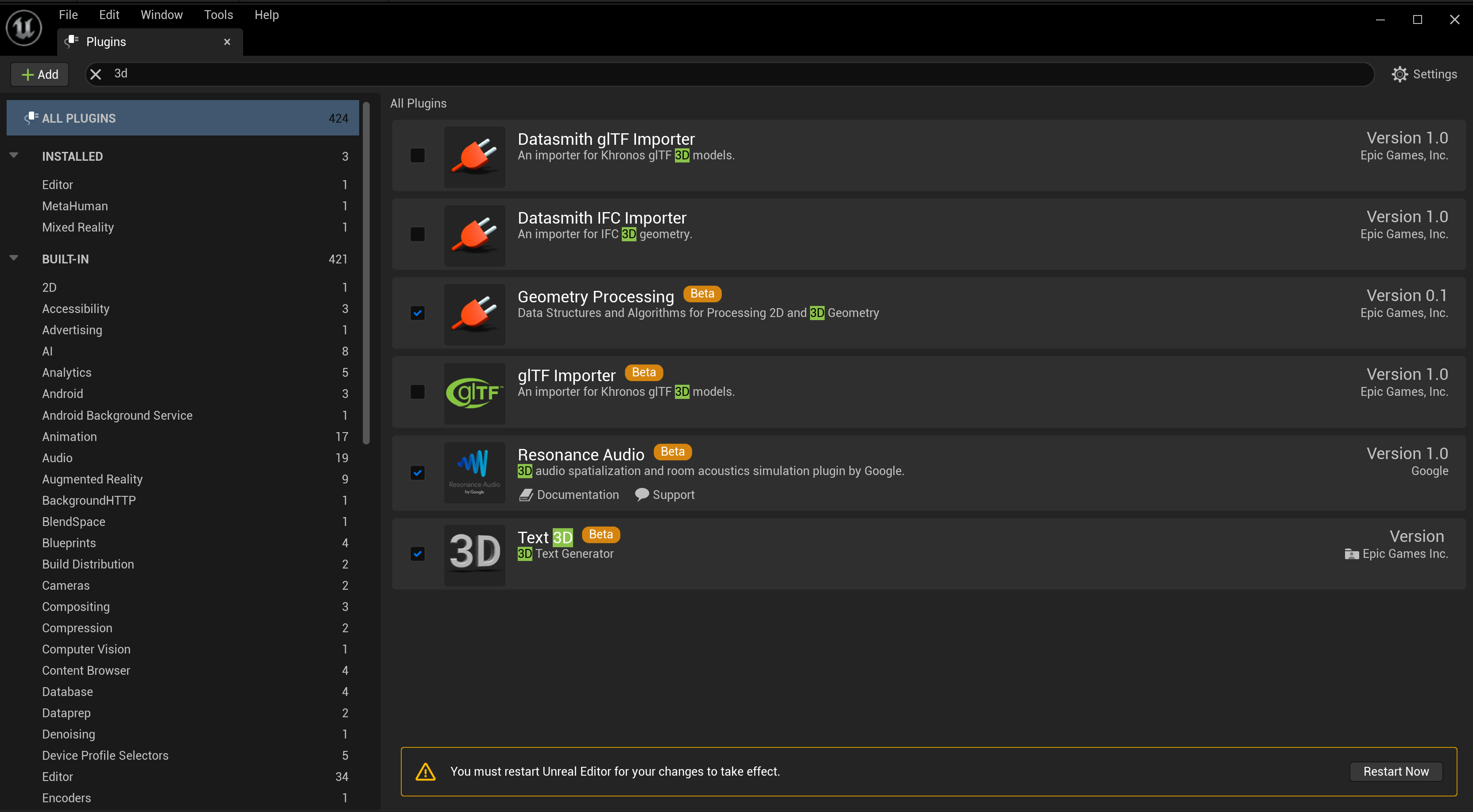
-
Click Save Selected to save all changes.
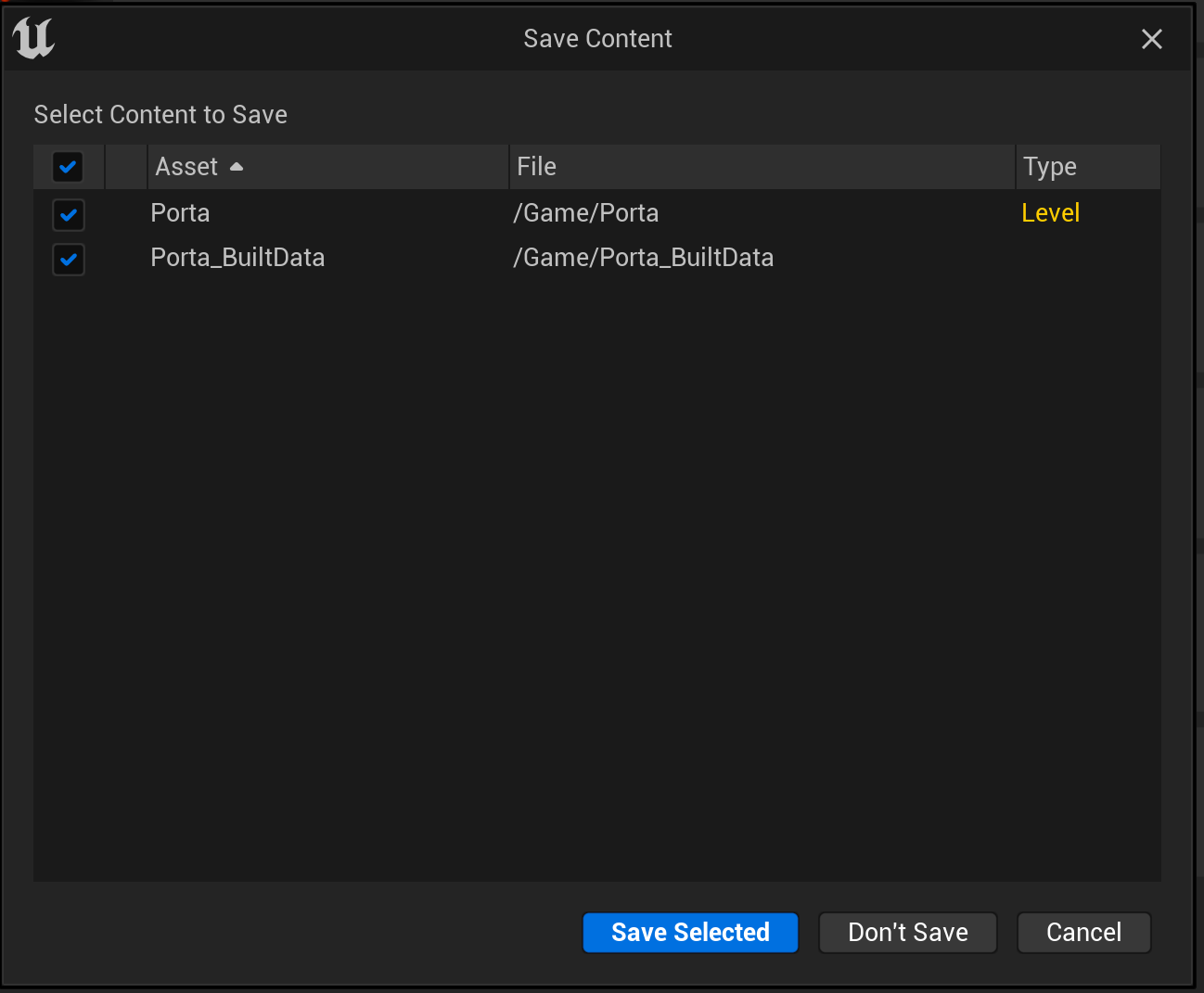
-
Unreal Editor will automatically reopen. Close the Plugins window.
Add a 3D text asset to an Unreal project
-
In the Unreal project click + to quickly add an item.
-
Select All Classes.
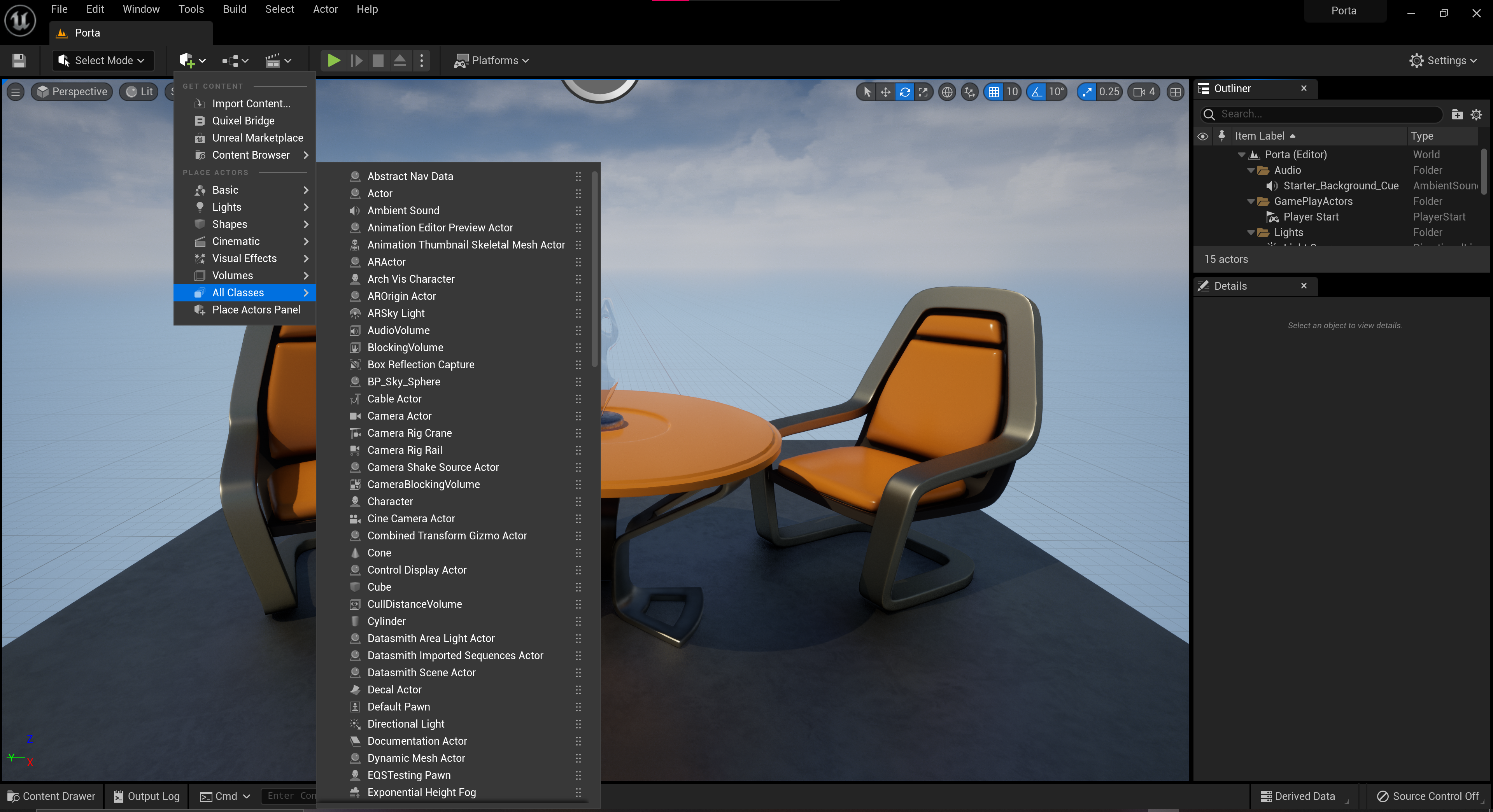
-
Press CTRL + Spacebar to enable search and type “3D”.
-
Click on Text3D to add it to the level.
-
In the Text parameter, type "Porta".
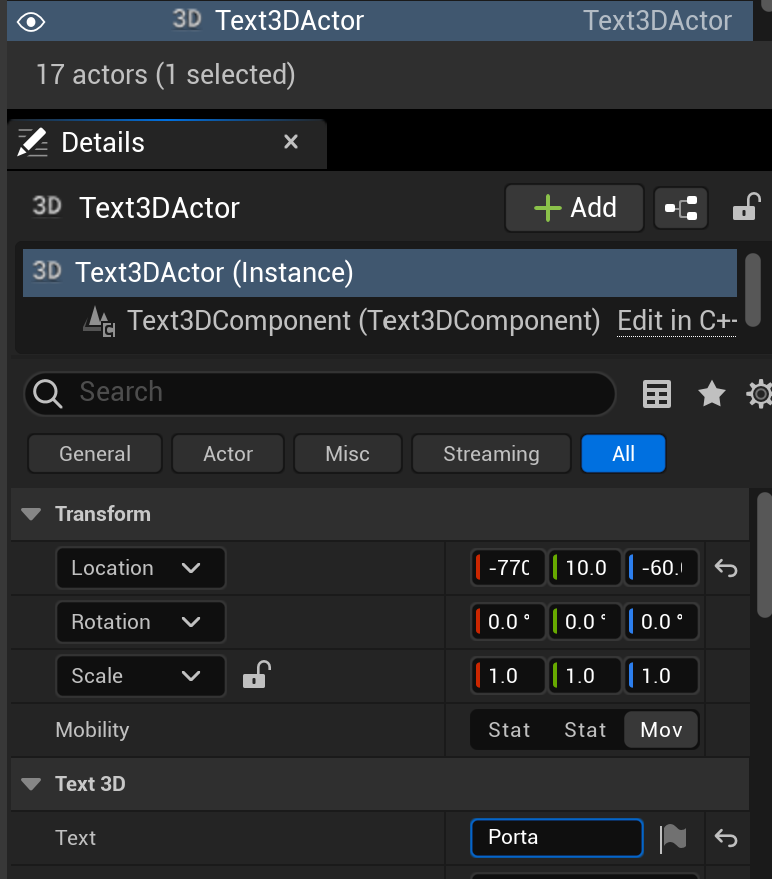
-
In the File menu, click Save All.
Expose an asset parameter in Unreal Engine
Ensure that you have enabled the Remote Control API plugin in your project.
Follow the steps above to enable a plugin
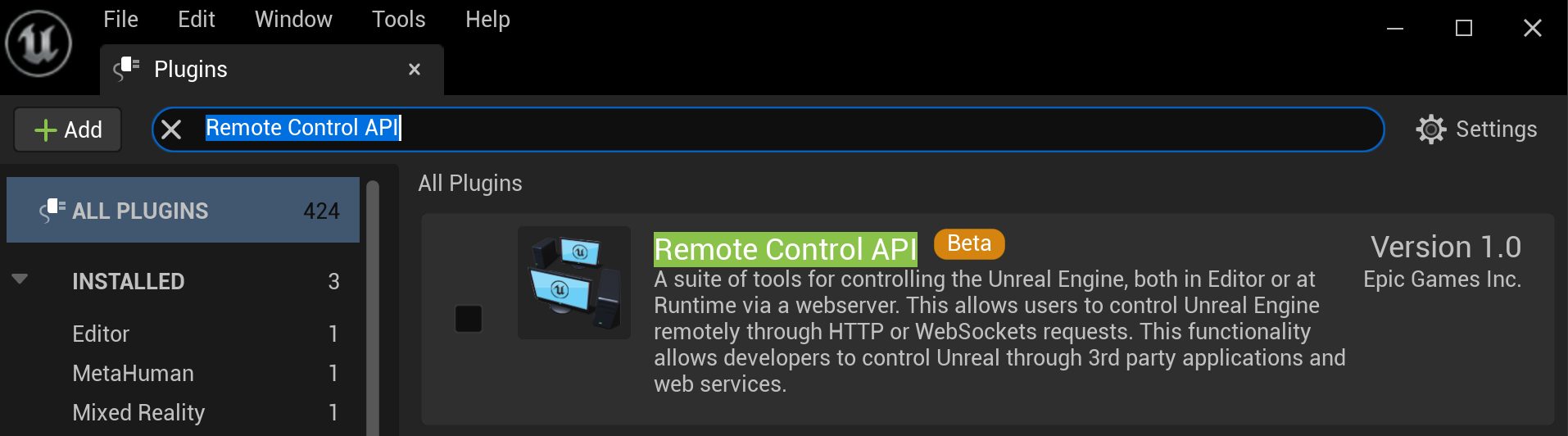
If you are using a sample project, this will already be enabled.
-
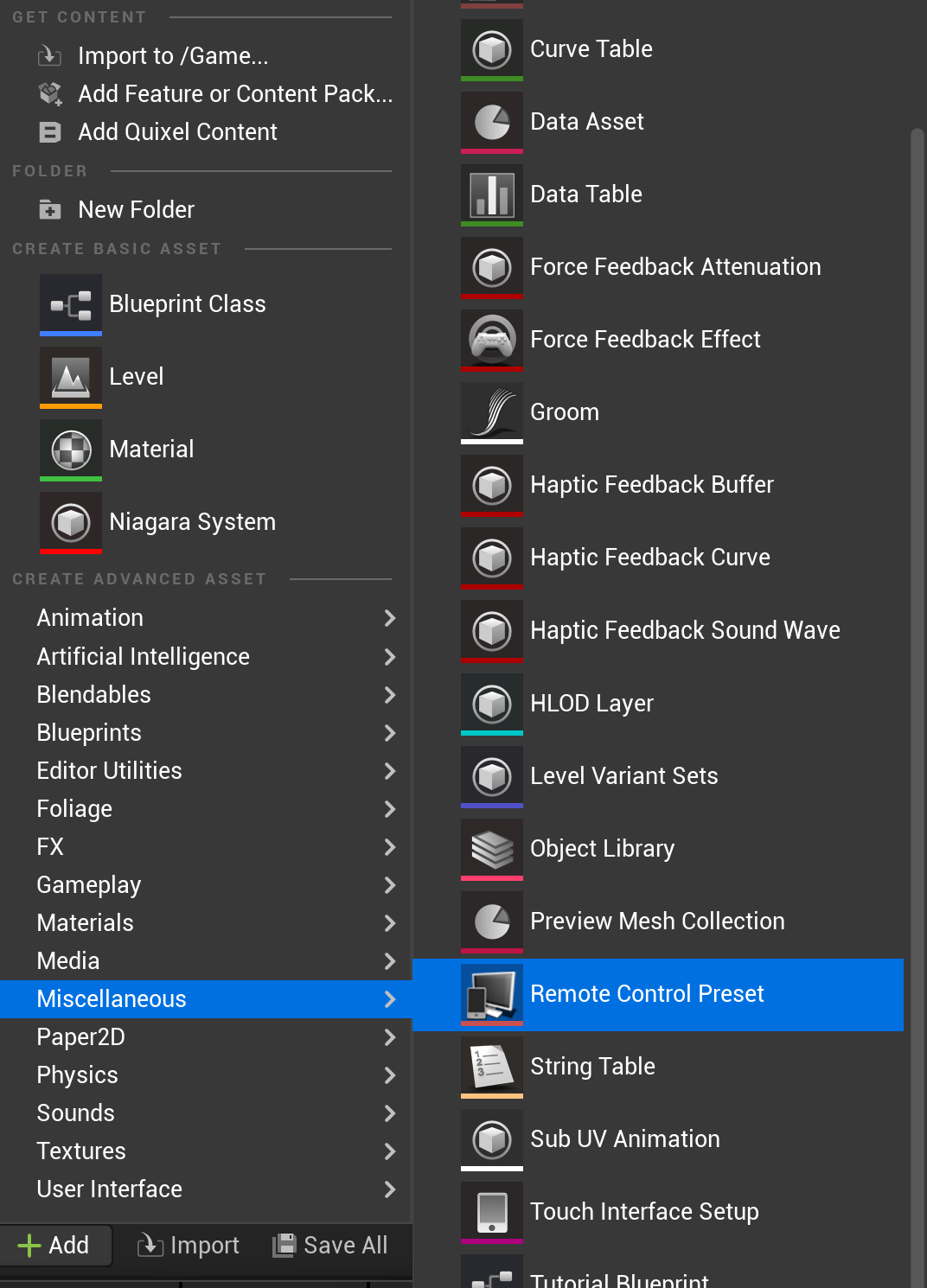
Open the Content Drawer and from the Content Browser, click + Add.
-
Select: Miscellaneous > Remote Control Preset.
-
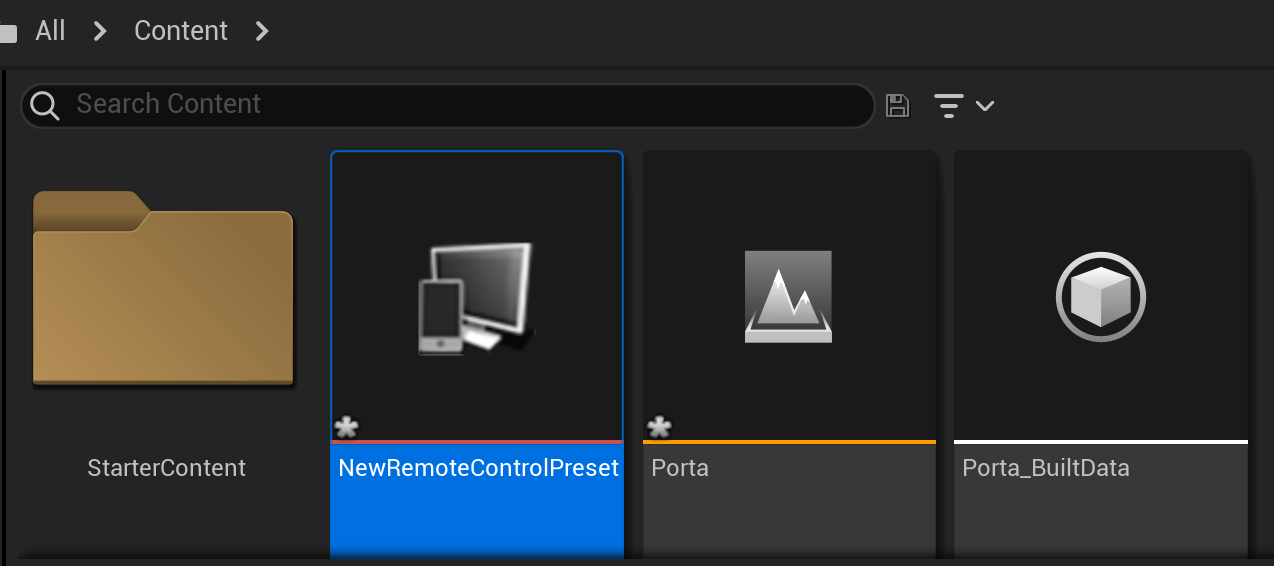
Double-click on the new Remote Control Preset in the Content Browser to open it.
-
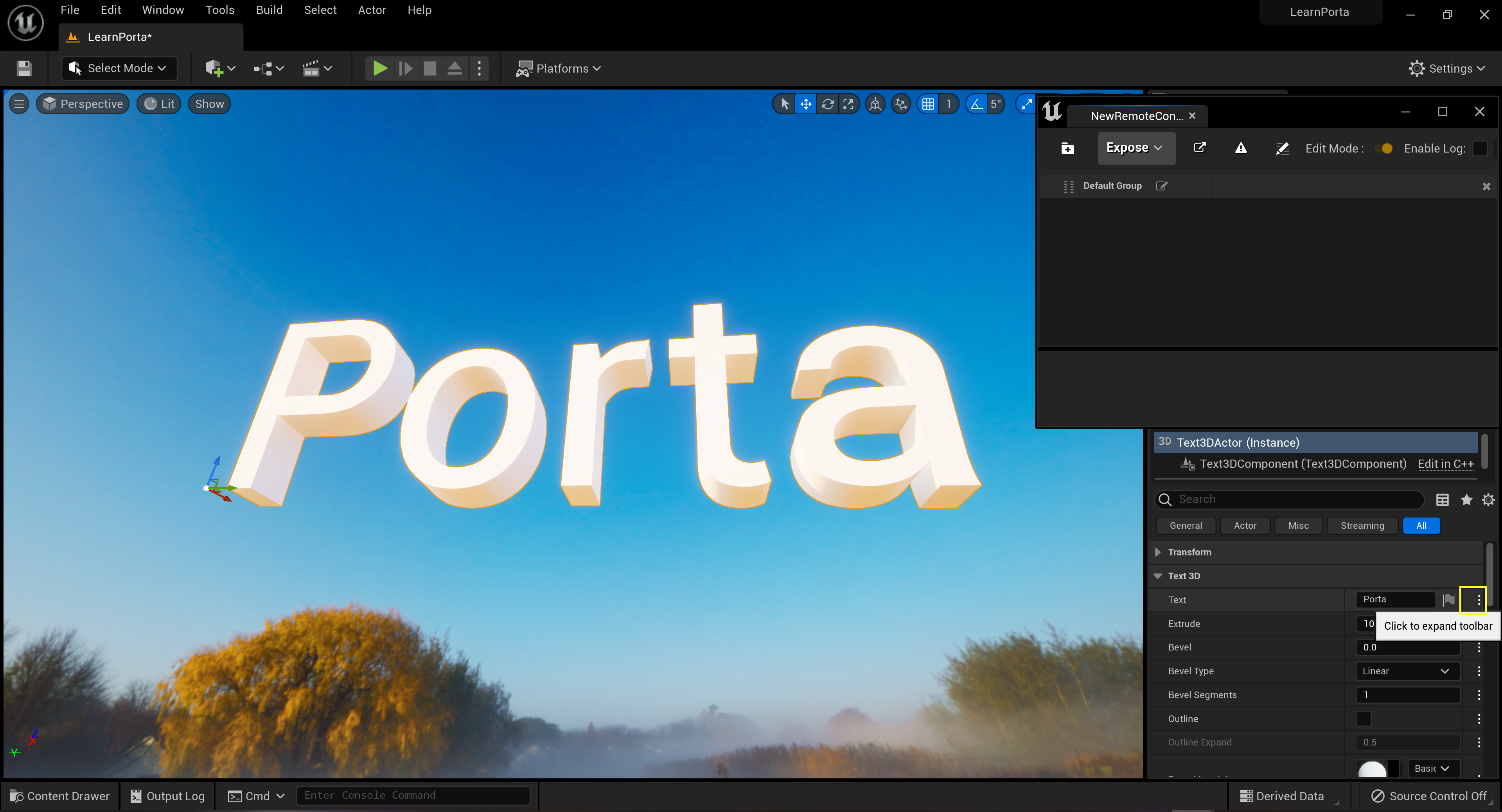
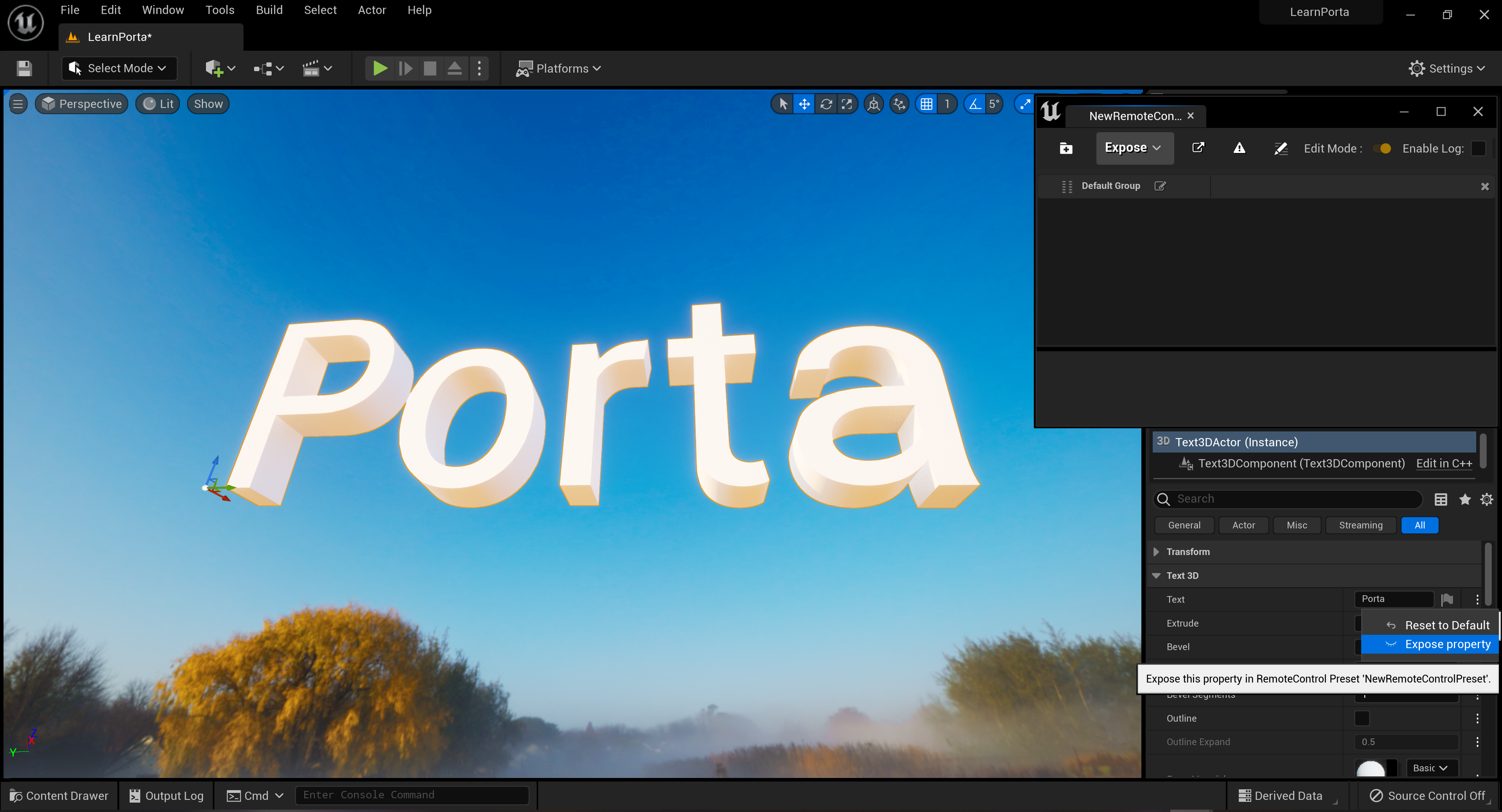
Select the Text3D asset in the Outliner.
-
In the Details panel, click on the 3 vertical dots at the edge of the Text parameter to expand the toolbar.
-
Click Expose property.
Using the Demo_Light project
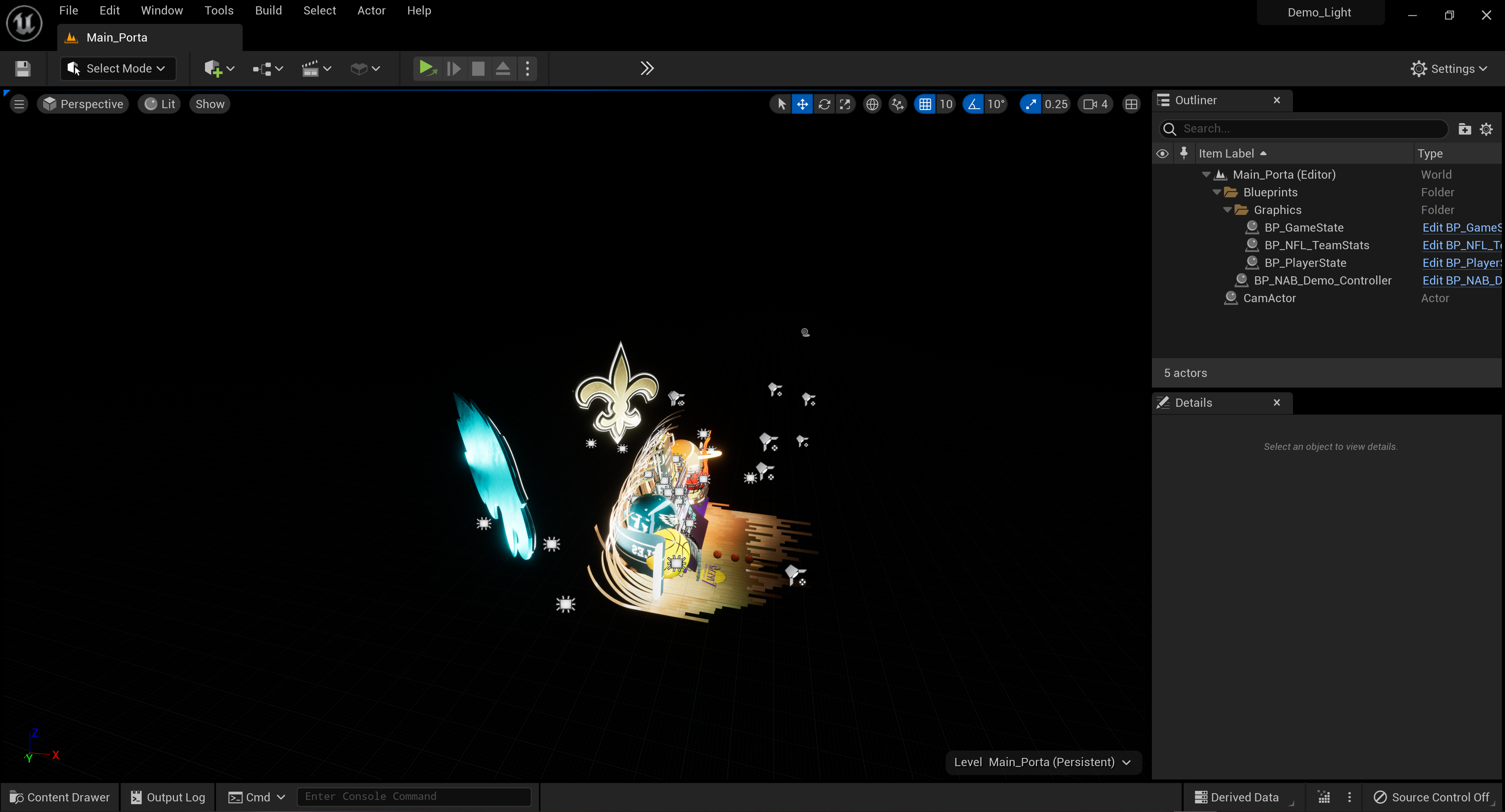
The team has put together the Demo_Light sample project which you can use to connect with Porta. The project contains all of the configurations and plugins that you need to get started with Porta.
If you are using Unreal Engine by itself, the default location for the project folder is: C:\Users\UserName\Documents\Unreal Projects
If you are using Unreal Engine wth Designer, the default location is: C:\Users\UserName\Documents\RenderStream Projects
The Demo_Light sample project is configured to run in Standalone game mode.
Click the play button to play in Standalone mode.

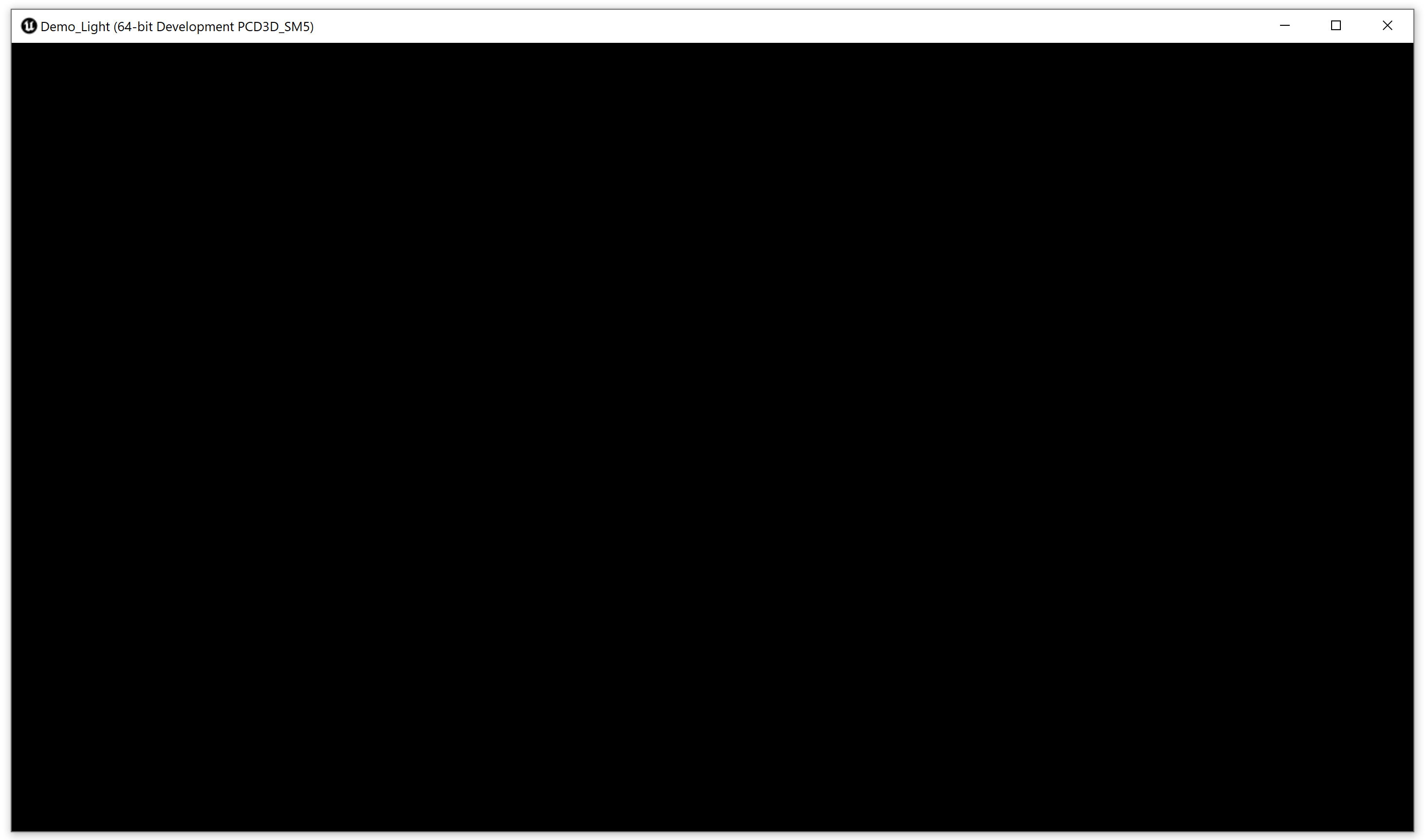
When Standalone mode plays the project the window is black. This is by design.
The next step is to connect the project to Porta.
