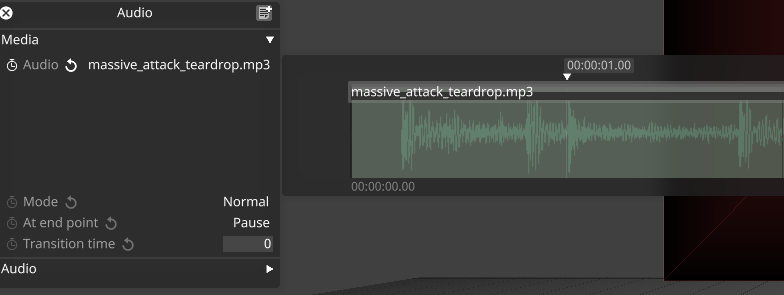
The audio waveform allows users to visualise the audio output of a single layer, a collection of layers or the quantized audio track while working in the keyframe editor. This permits them to add keyframes while taking audio output as a consideration at a glance.
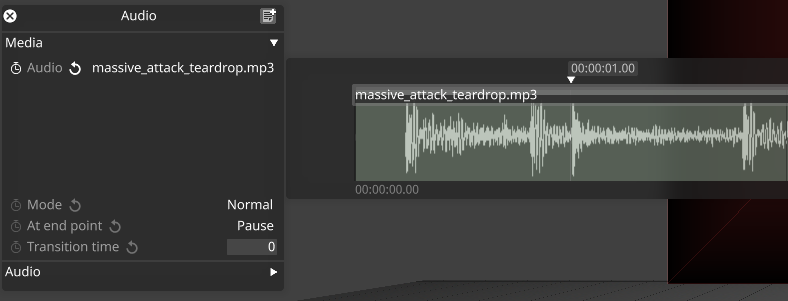
To visualize the audio waveform of one or more layers:
Create one or more audio layers.
Set the audio track of the layer(s).
This example uses massive_attack_teardrop.mp3.Open a keyframe editor.
Right-click in the keyframe editor area to access keyframe Options.
The available options are:Delete keyframes after
Delete keyframes before
None
Layer
Combined
Quantised
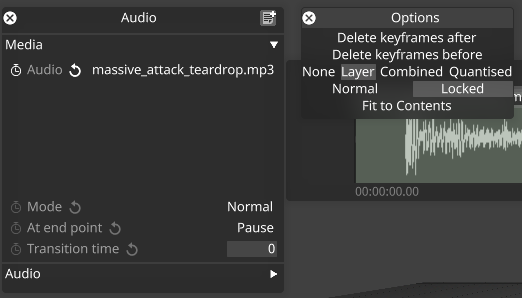
Key widget waveform modesSelect one of the following options:
Layer
to visualize the waveform of the currently opened layer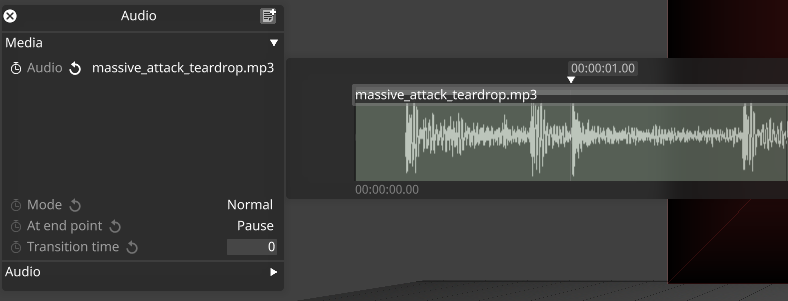
Single layer waveform
Combined
to visualize the collective waveform of multiple layers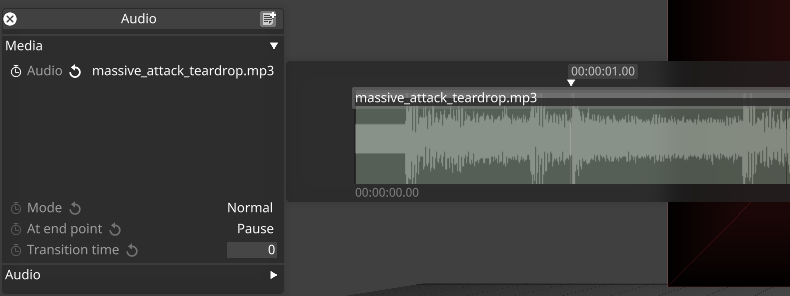
Combined layers audio waveforms
To visualize the audio waveform of the quantized audio
Add an audio track to the track.
Open a keyframe editor.
Right-click in the keyframe editor area to access the options
Select Show quantised audio waveform to visualize the waveform of the timeline audiotrack.
Quantised audio waveforms
Examples of audio waveforms
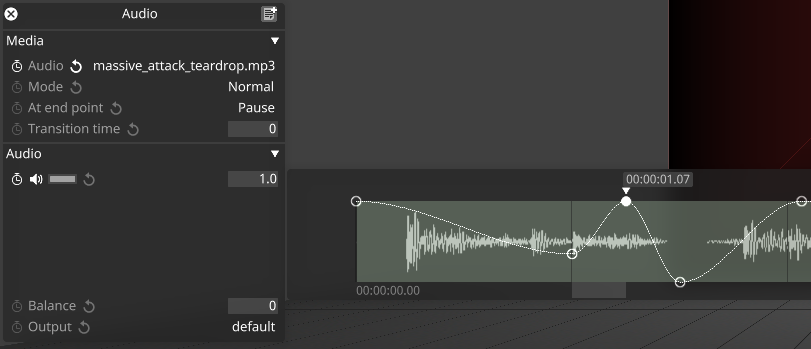
Audio waveform with volume keyframes
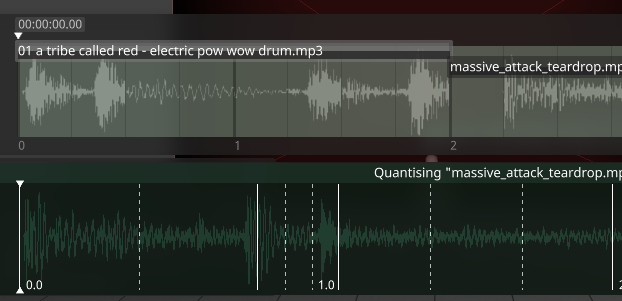
Audio waveform in layer mode with quantised track
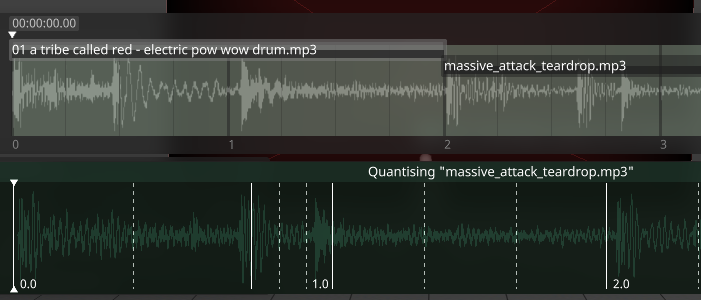
Audio waveform in quantised mode with quantised track
