
-
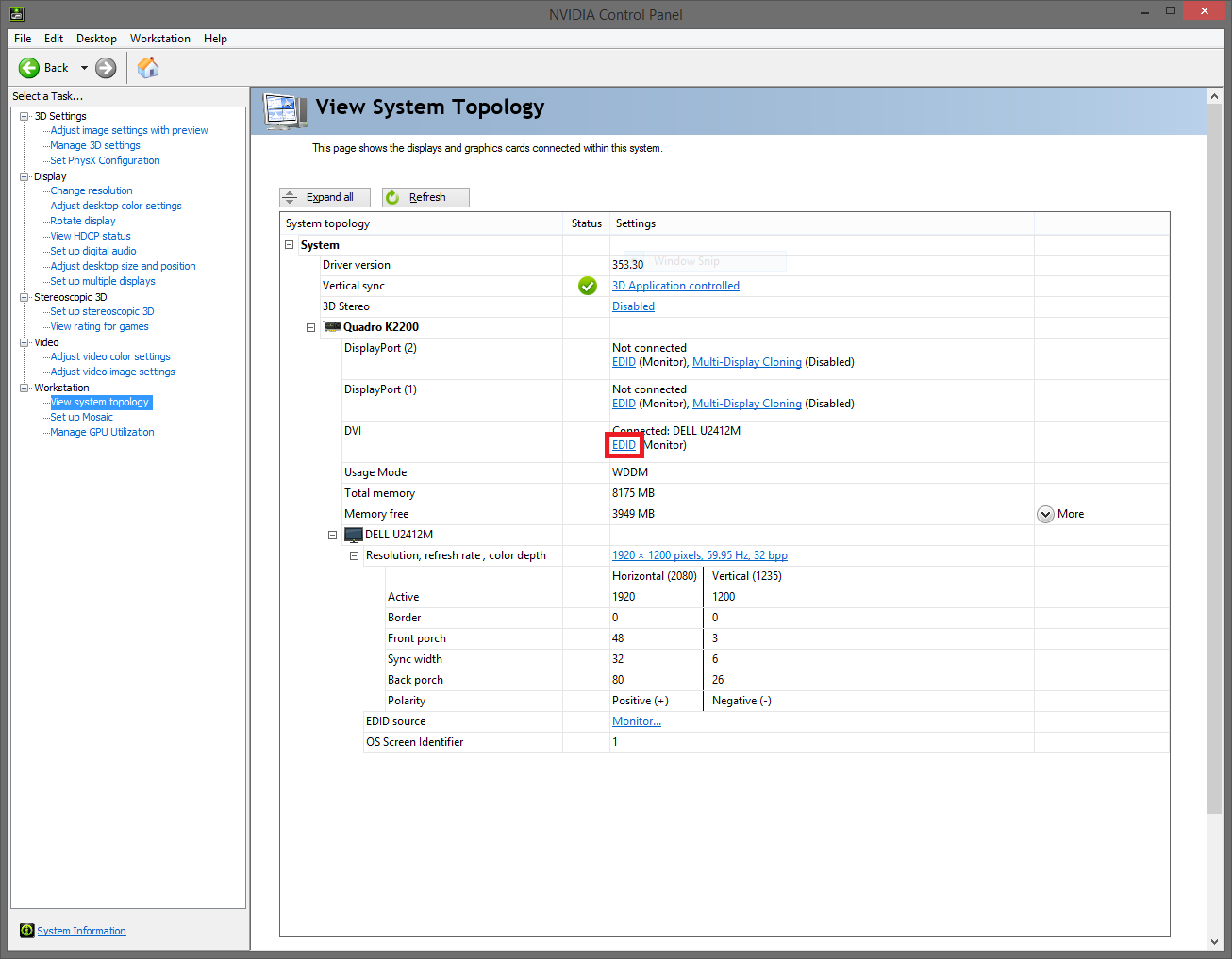
Navigate to the "View system topology" tab
 (1).png)
-
Click the EDID button next to a card connection (DVI or DisplayPort)
-
Navigate to the "Load" tab inside the Manage EDID window
-
Browse to your preferred EDID and select which display connections you want to emulate the EDID on.
.png)
-
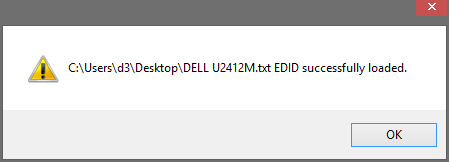
After the EDID is successfully applied you will see this
 small icon which indicates that the display connection has an emulated EDID asociated with it.
.png)
-
Navigate to the "View system topology" tab
-
Click the EDID button next to a card connection (DVI or DisplayPort)
-
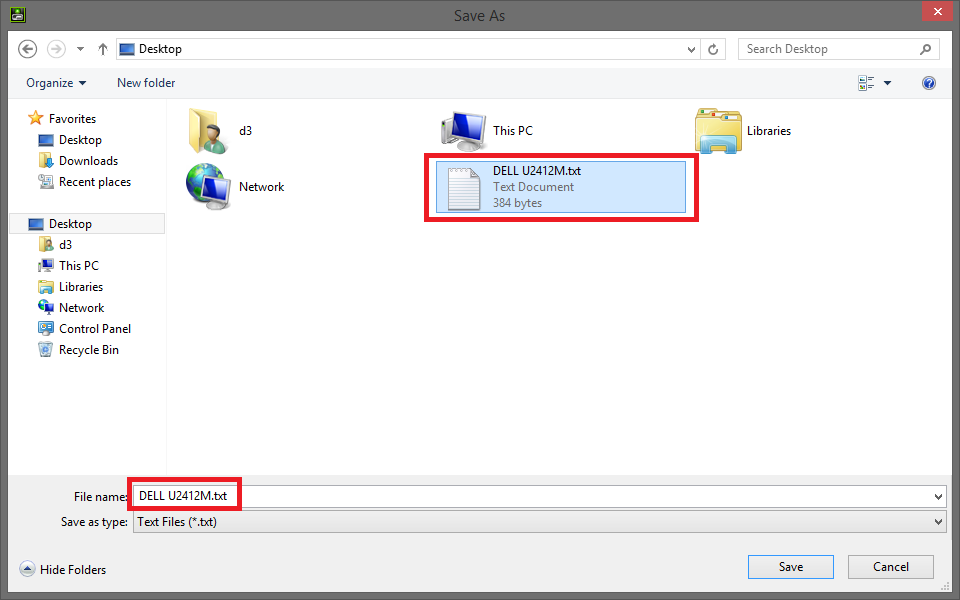
Export your preferred EDID to the desktop or documents folder
.png)
EDIDs on all outputs of all connected VFC cards can be reset to a neutral state easily using the keyboard shortcut FFS (Four Finger Salute) as follows:
- Hold CTRL + ALT + SHIFT + F12
- disguise will display several status messages on the screen during the reset process; please wait until reset process has completed before continuing
Please note: You can only genlock outputs that have identical EDID
