Update Quad-SDI / Quad-DVI VFC firmware
How to determine the current firmware version
-
Populate a VFC compatible disguise machine with the Quad-SDI or Quad-DVI VFC cards you want to check.
-
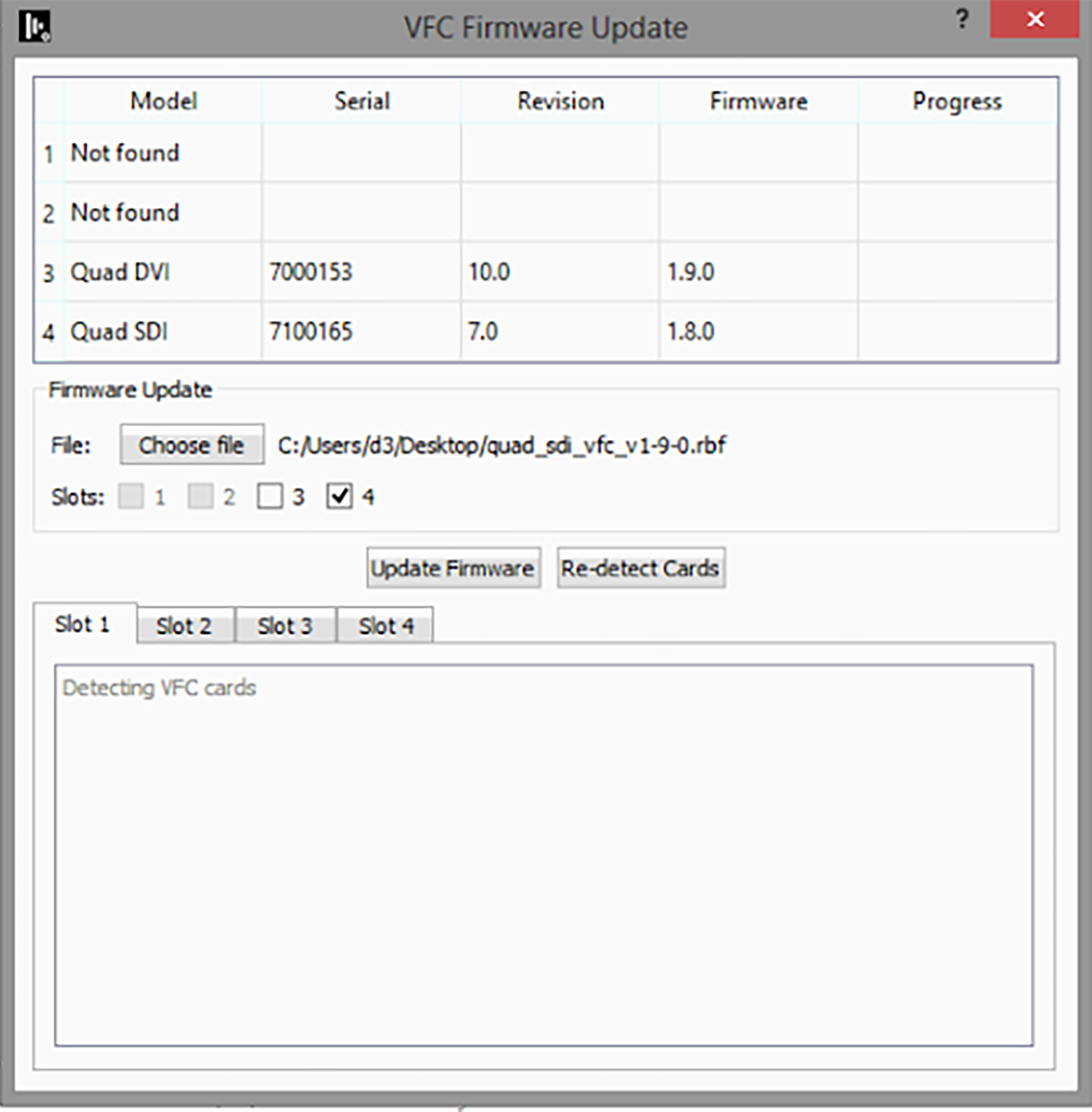
Run vfcfirmwareupdater.exe located at C:\Program Files\d3 Production Suite\build\msvc.
-
Check Firmware Version.
How to determine the current firmware version
-
Populate any VFC compatible disguise machine with either the Quad-SDI or Quad-DVI VFC cards required to be updated.
-
Download the VFC firmware update Quad-SDI and/or Quad-DVI VFC cards from the ‘Resources’ tab located on disguise.download.
-
Run vfcfirmwareupdater.exe located at C:\Program Files\d3 Production Suite\build\msvc or from the ‘Resources’ tab located on disguise.download.
-
Click Choose file and load the downloaded VFC firmware update. If updating the Quad-SDI VFC card for example, the filename should be quad_sdi_vfc_v1-9-0.rbf .
-
Slots will be automatically seleced.
Ensure only Quad-SDI or Quad-DVI type cards have the correct firmware update applied to them.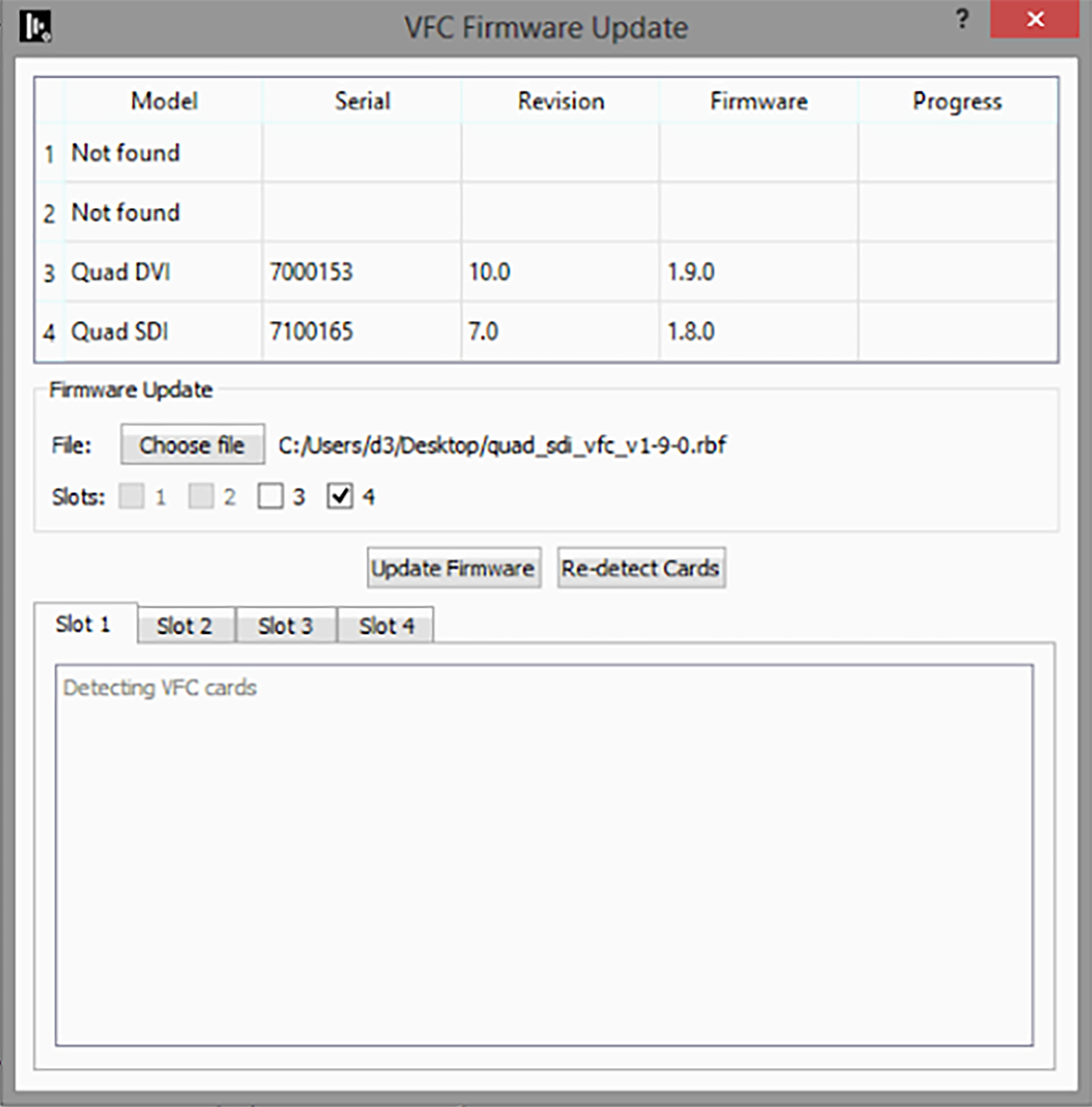
-
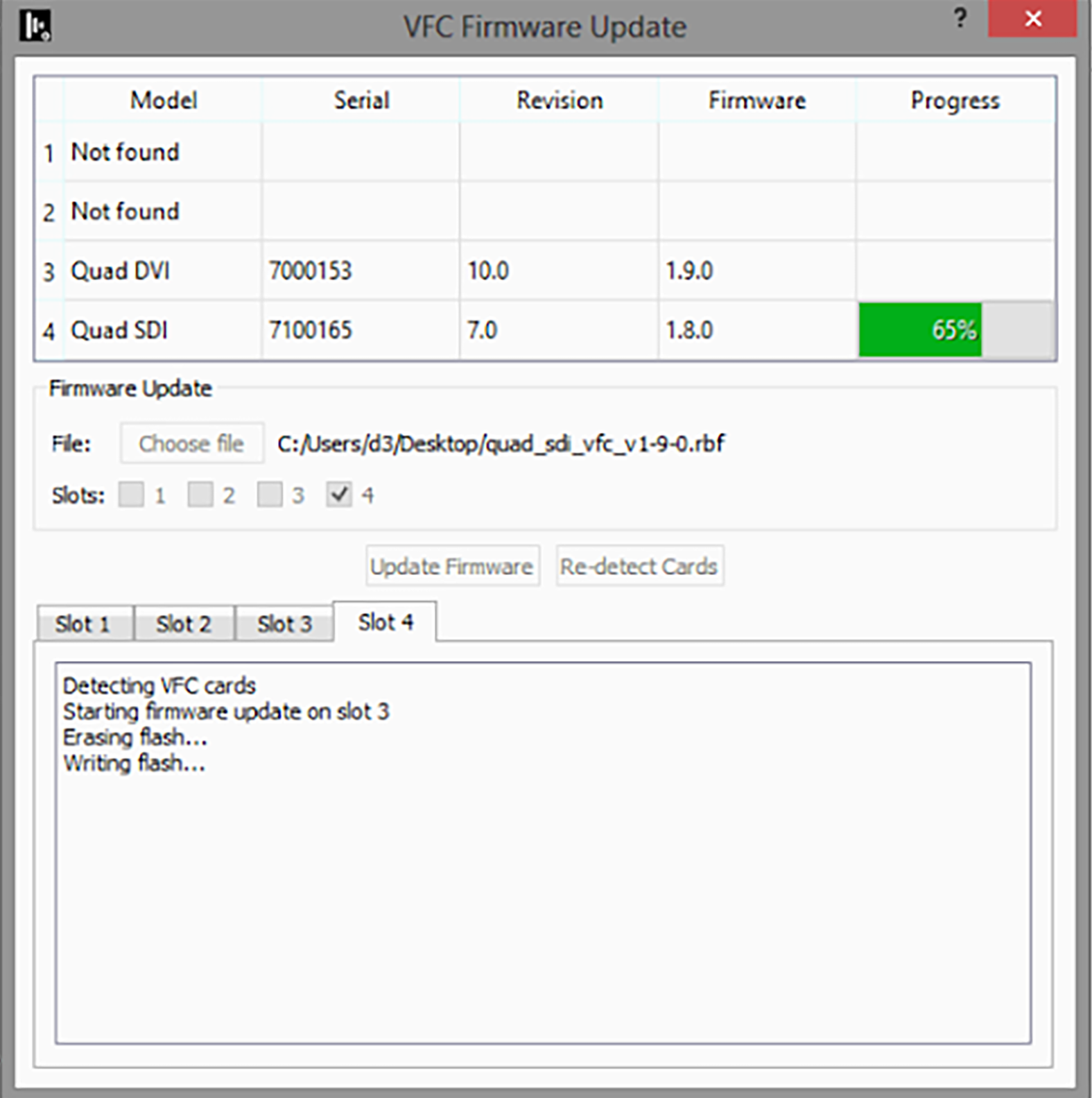
Click Update Firmware, the update will start and will take between 10-25 minutes.
-
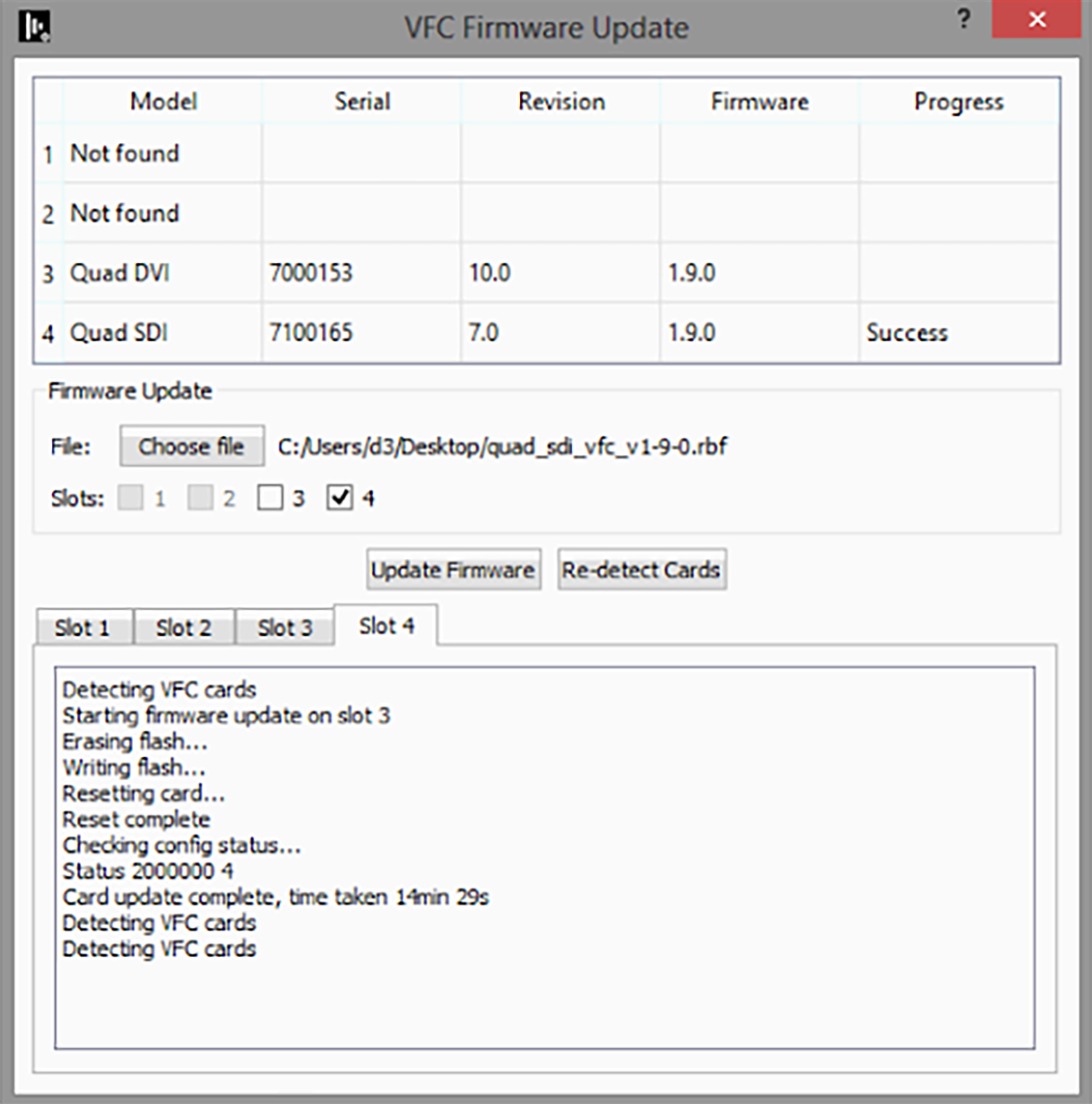
On completion, the Firmware version field will not update until all cards have finished updating and have been re-initialised and detected.
-
Finally, reboot the system.
